
Introduction to Excel
Microsoft Excel एक spreadsheet software है जिसका उपयोग data को व्यवस्थित करने, calculations करने और information को analyze करने के लिए किया जाता है। Excel में data को cells में enter किया जाता है और ये cells rows और columns के रूप में व्यवस्थित होते हैं। Microsoft के अनुसार Excel workbook में worksheets होती हैं और cells में text, numbers या formulas रखे जा सकते हैं।
What is Microsoft Excel?
इस article में हम Excel के interface और basic working environment पर focus करेंगे। Detailed Data Entry & Basic Formula को अगले lesson में विस्तार से समझा जा सकता है।
Excel Welcome Screen
- Blank Workbook
- Recent files
- Templates
- Open option
Basic User के लिए Excel
- Workbook
- Worksheet
- Row
- Column
- Cell
- Cell Address
- Range
- Ribbon
- Formula Bar
Pro User के लिए Excel
Excel Interface: Understanding the Main Component
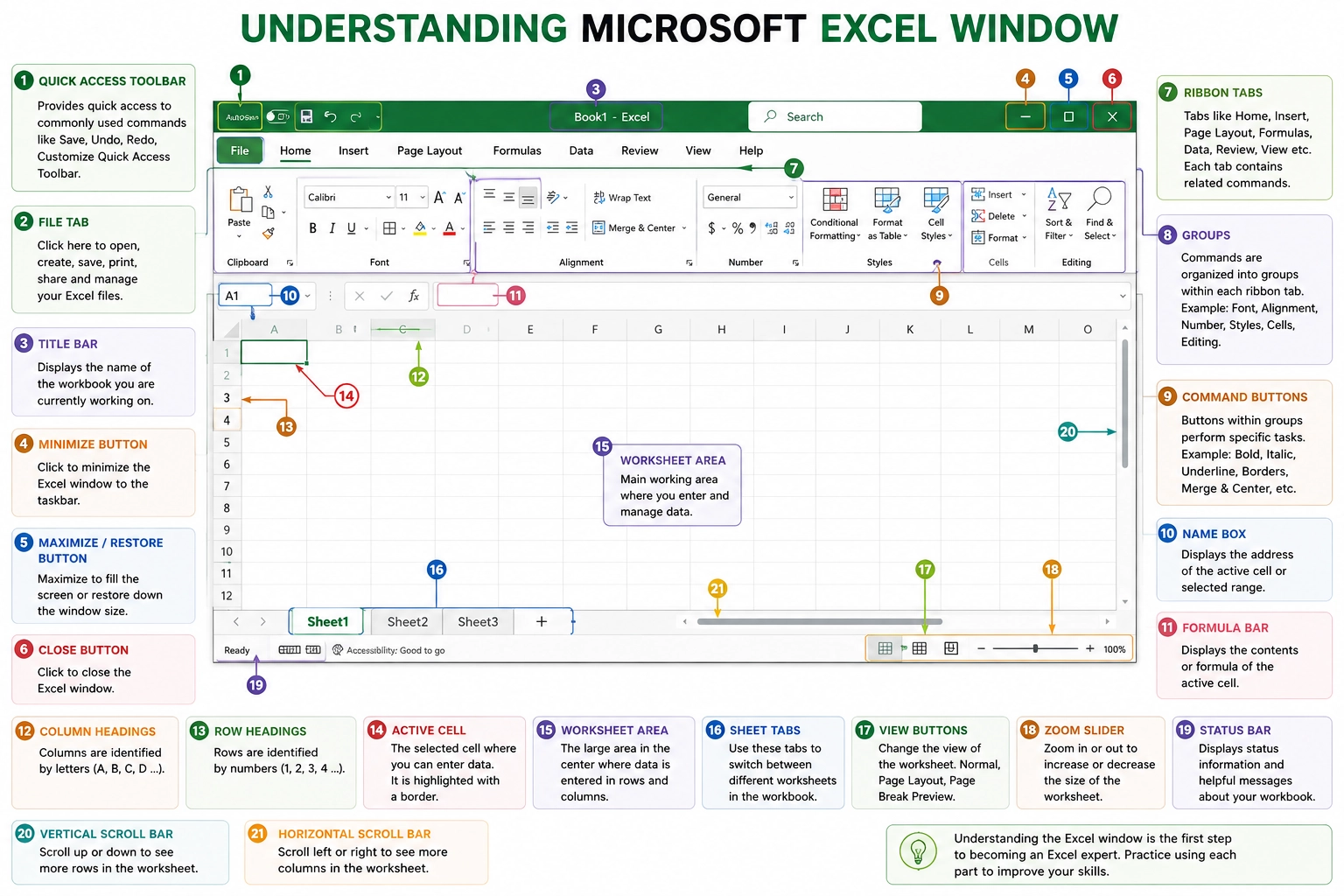
Quick Access Toolbar
Quick Access Toolbar Excel window के ऊपर दिखाई देने वाला छोटा toolbar है। इसमें frequently used commands को आसानी से access किया जा सकता है।
उदाहरण के लिए, Save और Undo जैसे commands यहां उपलब्ध हो सकते हैं। Microsoft Excel में Quick Access Toolbar को customize भी किया जा सकता है।
इसका मुख्य फायदा यह है कि बार-बार इस्तेमाल होने वाले commands तक पहुंचने के लिए आपको हर बार Ribbon में जाने की जरूरत नहीं पड़ती।
Title Bar
Title Bar Excel window के सबसे ऊपर होता है। इसमें सामान्यतः वर्तमान workbook का नाम और application का नाम दिखाई देता है।
जब आप किसी workbook को save करते हैं, तो उसका file name Title Bar में दिखाई दे सकता है।
Title Bar आपको यह पहचानने में मदद करता है कि इस समय कौन-सी Excel file खुली हुई है।
Window Control Buttons
Excel window के upper-right area में सामान्यतः window control buttons होते हैं:
- Minimize
- Maximize/Restore
- Close
Minimize window को taskbar पर भेजता है।
Maximize window को पूरी screen पर दिखाता है।
Close Excel window को बंद करता है।
Name Box
Name Box Formula Bar के बाईं ओर दिखाई देता है। इसका उपयोग active cell का address देखने और किसी cell या range पर जल्दी जाने के लिए किया जा सकता है।
उदाहरण के लिए, अगर active cell B5 है, तो Name Box में B5 दिखाई दे सकता है।
Name Box का उपयोग large worksheet में navigation को आसान बना सकता है।
Formula Bar
Tabs, Ribbon and Groups Structure
Excel में Ribbon commands को organized तरीके से access करने का मुख्य area है। Ribbon में अलग-अलग Tabs होते हैं, जैसे:
- Home
- Insert
- Page Layout
- Formulas
- Data
- Review
- View
Excel version के अनुसार tabs और available commands में अंतर हो सकता है।
हर tab के अंदर related commands को अलग-अलग Groups में organize किया जाता है। उदाहरण के लिए Home tab में Font, Alignment और अन्य related groups मिल सकते हैं।
इस structure को समझ लेने के बाद Excel के tools को locate करना काफी आसान हो जाता है।
The Grid System: Rows and Columns
Excel की worksheet एक grid system पर आधारित होती है।
What is a Row in Excel?
Row worksheet में horizontal direction में होती है। Rows को numbers से identify किया जाता है:
1, 2, 3, 4, 5…
What is a Column in Excel?
Column worksheet में vertical direction में होता है। Columns को letters से identify किया जाता है:
A, B, C, D…
जब कोई row और column intersect करते हैं, तो वहां एक Cell बनता है।
What is a Cell in Excel?
Cell Excel worksheet की सबसे basic working unit है। इसमें data store किया जा सकता है।
उदाहरण:
- A1
- B2
- C5
इनमें A1, B2 और C5 cell addresses हैं।
Microsoft के अनुसार Excel में cells को उनकी row और column position के आधार पर reference किया जाता है; उदाहरण के लिए A1 column A की पहली row का cell है।
What is a Range in Excel?
Navigation and Zooming Tricks in Excel
| Shortcut | उपयोग |
| Arrow Keys | एक cell move करना |
| Tab | अगली column की ओर जाना |
| Enter | अगली row की ओर जाना |
| Ctrl + Home | worksheet के starting area पर जाना |
| Ctrl + End | used area के अंतिम भाग पर जाना |
| Page Up | ऊपर की ओर move करना |
| Page Down | नीचे की ओर move करना |
Sheet Management in Excel
एक workbook में multiple worksheets हो सकती हैं। Microsoft की basic Excel documentation भी बताती है कि workbook में sheets add की जा सकती हैं।
Add a New Sheet
नई worksheet जोड़ने के लिए Sheet Tab area में + button का उपयोग किया जा सकता है।
Rename a Sheet
Worksheet को meaningful नाम देने के लिए Sheet Tab पर right-click करके Rename option का उपयोग किया जा सकता है।
उदाहरण:
- Sheet1 → Student Data
- Sheet2 → Attendance
- Sheet3 → Fees
Delete a Sheet
अनावश्यक worksheet को Sheet Tab पर right-click करके Delete किया जा सकता है।
Important: Delete करने से पहले यह check करें कि उस worksheet में जरूरी information तो नहीं है।
Data Entry and Formula Bar: Basic Understanding
Excel में data को cells में enter किया जाता है। Data text, numbers और अन्य supported values के रूप में हो सकता है। Microsoft की Excel guide के अनुसार cell select करके text या number type करने और Enter या Tab से आगे बढ़ने की basic प्रक्रिया इस्तेमाल की जाती है।
इस article में हम detailed data entry techniques और formulas को intentionally basic level तक रख रहे हैं, क्योंकि Data Entry & Basic Formula अगला dedicated topic होगा।
Alignment Rules in Excel
Cell content को worksheet में अलग-अलग alignment options के साथ display किया जा सकता है।
मुख्य alignment options हैं:
- Left Align
- Center
- Right Align
- Top
- Middle
- Bottom
Alignment का उपयोग data को readable और professionally organized बनाने के लिए किया जाता है।
Basic Formula Rules
Excel में formula लिखते समय सबसे महत्वपूर्ण basic rule यह है कि formula सामान्यतः = sign से शुरू होता है।
उदाहरण के लिए:
=2+3
यह Excel को बताता है कि cell में calculation की जानी है। Microsoft की documentation भी बताती है कि simple Excel formula = sign से शुरू होता है।
Detailed operators, cell references, functions और formula examples को अगले article में विस्तार से cover किया जाएगा।
Status Bar in Excel
Status Bar Excel window के नीचे दिखाई देता है। यह selected cells या worksheet की current state से संबंधित useful information दिखा सकता है।
जब आप numbers वाले कई cells select करते हैं, तो Excel कुछ summary information जैसे Sum या Average भी दिखा सकता है, depending on the selection and settings.
Status Bar worksheet की स्थिति और quick information देखने के लिए उपयोगी है।
How to Save an Excel File
Excel में काम करने के बाद workbook को save करना बहुत जरूरी है।
Existing workbook को save करने के लिए:
Ctrl + S
shortcut इस्तेमाल किया जा सकता है। Microsoft Support के अनुसार Save command या Ctrl+S से workbook save किया जा सकता है। पहली बार save करते समय file location और file name चुनना पड़ सकता है।
Save As
अगर आप workbook को किसी दूसरी location, अलग name या अलग format में save करना चाहते हैं, तो Save As option उपयोगी होता है।
Excel workbook का commonly used format:
.xlsx
होता है।
Macro-enabled workbook के लिए .xlsm जैसे formats भी उपयोग किए जाते हैं। Save करते समय सही file format चुनना महत्वपूर्ण है।
Excel Undo and Redo
काम करते समय अगर आपसे कोई गलती हो जाए, तो Undo feature बहुत उपयोगी होता है।
Undo
Ctrl + Z
का उपयोग पिछली action को undo करने के लिए किया जा सकता है।
Redo
Ctrl + Y
का उपयोग undone action को फिर से लागू करने के लिए किया जा सकता है।
Microsoft Support के अनुसार Excel में Ctrl+Z से Undo और Ctrl+Y से Redo किया जा सकता है।
Excel के interface और basic concepts समझने के बाद अगला step Data Entry & Basic Formula सीखना है। इसमें आप Excel में data enter करना और basic formulas का उपयोग सीखेंगे।
10 Powerful Benefits of Learning Excel
Introduction to Excel सीखने के कई practical benefits हैं। Beginners के लिए इसके 10 important benefits हैं:
- Better Data Organization – बड़ी मात्रा में information को व्यवस्थित करना आसान होता है।
- Faster Calculations – calculations को efficiently perform किया जा सकता है।
- Professional Reports – structured reports तैयार की जा सकती हैं।
- Office Productivity – daily office tasks को अधिक efficiently manage किया जा सकता है।
- Data Analysis – data को समझने और analyze करने में मदद मिलती है।
- Record Management – student, employee, sales या inventory records maintain किए जा सकते हैं।
- Easy Data Navigation – rows, columns और worksheets के कारण information को navigate करना आसान होता है।
- Useful Career Skill – Excel कई office और business roles में उपयोगी computer skill है।
- Better Presentation of Data – tables और charts के माध्यम से information को present किया जा सकता है।
- Foundation for Advanced Excel – basic Excel सीखने के बाद formulas, functions, PivotTables, charts और advanced data analysis जैसे topics सीखना आसान हो जाता है।
Most Useful Excel Shortcuts for Beginners
Keyboard shortcuts Excel में काम करने की speed बढ़ाने में मदद कर सकते हैं।
Shortcut | Function |
Ctrl + N | New workbook |
Ctrl + O | Open workbook |
Ctrl + S | Save workbook |
Ctrl + C | Copy |
Ctrl + X | Cut |
Ctrl + V | Paste |
Ctrl + Z | Undo |
Ctrl + Y | Redo |
Ctrl + F | Find |
Ctrl + A | Select |
Ctrl + P | |
Ctrl + Home | Beginning of worksheet |
Ctrl + End | End of used area |
Microsoft की official documentation में Excel और Microsoft 365 के लिए keyboard-based navigation और commands की जानकारी उपलब्ध है।
Who Should Learn Microsoft Excel?
Introduction to Excel केवल office employees के लिए नहीं है। इसे कई प्रकार के learners सीख सकते हैं:
- Students
- Teachers
- Office Employees
- Accountants
- Business Owners
- Data Entry Operators
- Administrative Professionals
- Freelancers
- Beginners
अगर आप computer course कर रहे हैं या office productivity skills develop करना चाहते हैं, तो Excel एक useful skill हो सकती है।
Introduction to Excel: What Should You Learn Next?
अब तक आपने Excel का basic environment और structure समझ लिया है। इसके बाद learning sequence को step-by-step रखना सबसे बेहतर रहेगा।
आपका अगला topic होना चाहिए:
Data Entry & Basic Formula
इस lesson में आप practical तरीके से सीख सकते हैं:
- Excel में data enter करना
- Text और numbers enter करना
- Date और basic data types
- Formula लिखने के rules
- Arithmetic operators
- Cell references
- Basic calculations
- Formula Bar का practical use
इसके बाद आप Formatting, Functions, Sorting & Filtering, Tables, Charts और Advanced Excel topics की ओर बढ़ सकते हैं।
Frequently Asked Questions About Introduction to Excel
What is Microsoft Excel?
Microsoft Excel एक spreadsheet application है जिसका उपयोग data को organize, calculate, manage और analyze करने के लिए किया जाता है।
What is a Workbook in Excel?
Workbook एक Excel file होती है जिसमें एक या अधिक worksheets हो सकती हैं।
What is a Worksheet in Excel?
Worksheet Excel workbook के अंदर working sheet होती है, जिसमें rows, columns और cells होते हैं।
What is a Cell in Excel?
Cell row और column के intersection से बनने वाली basic unit है, जिसमें information enter की जा सकती है।
What is a Range in Excel?
एक या अधिक selected cells के समूह को range कहा जाता है। उदाहरण के लिए A1:C5 एक range है।
Is Excel difficult for beginners?
Excel की शुरुआत basic interface, workbook, worksheet, rows, columns और cells से करने पर इसे step-by-step सीखना आसान हो सकता है।
What should I learn after Introduction to Excel?
Introduction के बाद Data Entry & Basic Formula सीखना logical next step है। इसके बाद Formatting, Functions, Sorting, Filtering, Tables और Charts जैसे topics सीखे जा सकते हैं।
Official Excel Resources
- Microsoft Excel Basic Tasks: Microsoft Support – Basic tasks in Excel
- Excel Save Guide: Microsoft Support – Save your workbook
- Excel Undo & Redo: Microsoft Support – Undo, redo, or repeat an action
- Microsoft Excel Learning: Microsoft Excel Help & Learning